jump to...
How to Schedule UniFi Access Point LED Lights with Home Assistant
UniFi access points feature a blue LED ring that indicates device status. While useful during the day, these lights can be distracting at night, especially in bedrooms or hallways. The UniFi Network Controller itself allows you to toggle the LED on or off, but it’s a permanent setting. There’s no built-in way to schedule the lights to turn off at night and back on in the morning.
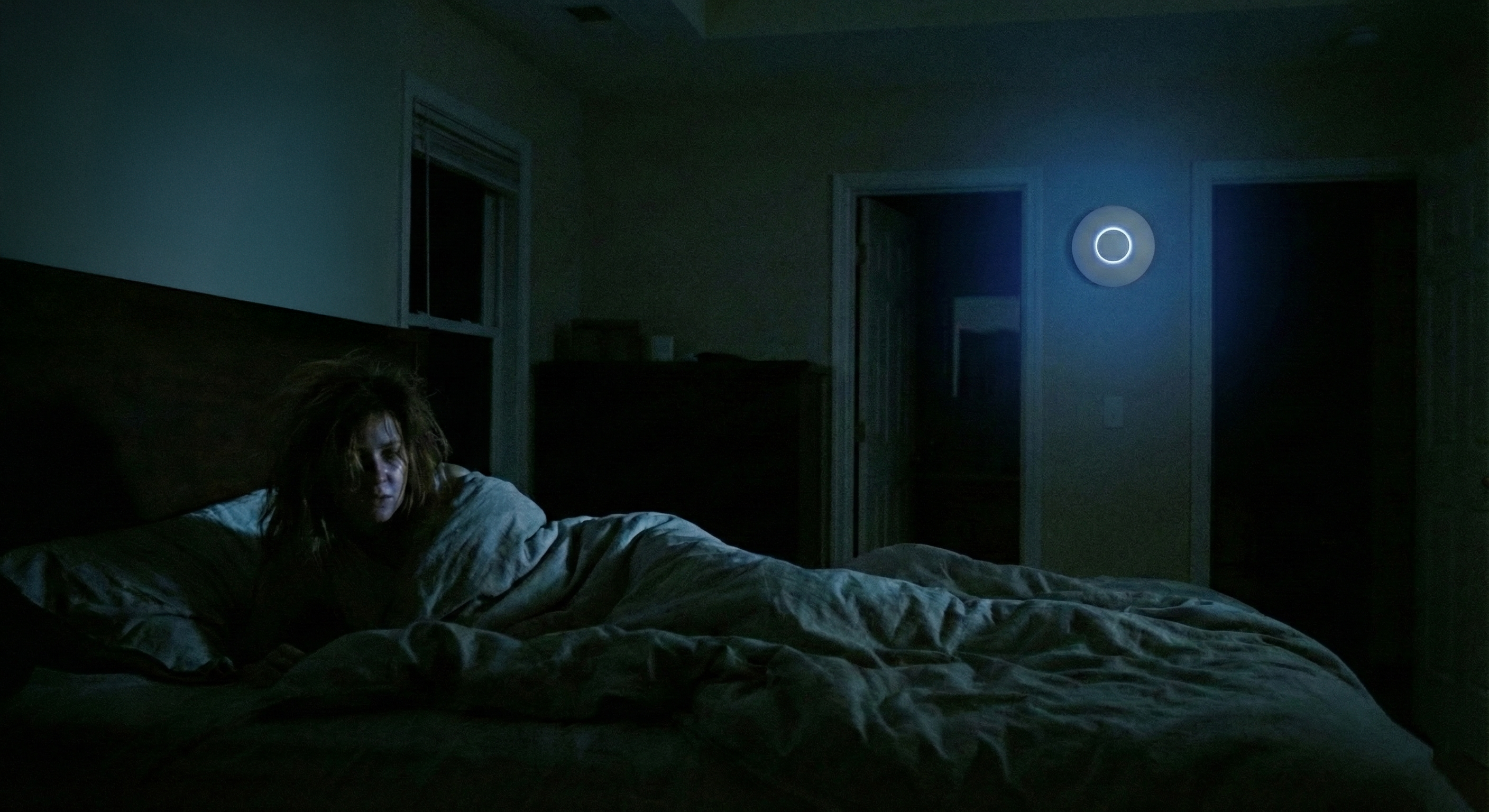
I have played a little bit with this and decided to put it into a guide that shows you how to solve this using Home Assistant’s automation capabilities combined with the UniFi Controller API.
Test Environment
My test and production :) environment have the following hardware:
- UniFi Controller: UniFi Cloud Gateway Fiber (UCG-Fiber) running UniFi OS
- Access Points: UniFi U7 Pro XGS (the process works with any UniFi AP with LED rings)
- Home Automation: Home Assistant Green with Home Assistant OS
- Network: All devices on the same local network (192.168.1.x)
The approach should work with other UniFi OS devices including:
- UniFi Dream Machine (UDM)
- UniFi Dream Machine Pro (UDM-Pro)
- UniFi Dream Router (UDR)
- UniFi Cloud Key Gen2
How It Works
The UniFi Controller exposes a REST API that can control device settings, including LED state. We’ll create a shell script that:
- Authenticates with the UniFi Controller
- Captures the CSRF token required for API requests
- Sends a PUT request to change the LED override state
Then we’ll wire this script into Home Assistant as a shell command and trigger it via time-based automations.
Prerequisites
- Home Assistant with SSH access (we’ll use the Terminal & SSH add-on)
- A local admin account on your UniFi Controller
Step 1: Get Your Access Point Device IDs
The UniFi API identifies devices by their internal ID (a 24-character hexadecimal string), not by name or MAC address. The newer UniFi web interface doesn’t expose these IDs anywhere, so we’ll query the API directly.
From any machine with curl installed (Mac, Linux, or Windows with WSL), run:
# Authenticate and save the session cookie
curl -ks -c /tmp/unifi_cookie -X POST \
  -H "Content-Type: application/json" \
  -d '{"username":"YOUR_ADMIN_USERNAME","password":"YOUR_PASSWORD"}' \
  "https://YOUR_CONTROLLER_IP/api/auth/login"

# List all devices with their IDs
curl -ks -b /tmp/unifi_cookie \
  "https://YOUR_CONTROLLER_IP/proxy/network/api/s/default/stat/device" | \
  python3 -c "import sys,json; data=json.load(sys.stdin)['data'];
[print(f\"Name: {d.get('name','unnamed')}\nID: {d['_id']}\nModel: {d.get('model','')}\n\") for d in data if d.get('type')=='uap']"
Replace:
YOUR_ADMIN_USERNAMEwith your UniFi admin usernameYOUR_PASSWORDwith your passwordYOUR_CONTROLLER_IPwith your controller’s IP address (e.g.,192.168.1.1)
This outputs only your access points (type uap) with their names and IDs.
Save the device ID(s) for your access points, you’ll need them later.
Step 2: Install the Terminal & SSH Add-on
- In Home Assistant, navigate to Settings > Add-ons
- Click Add-on Store (bottom right)
- Search for “Terminal & SSH” (the official Home Assistant add-on)
- Click Install
- After installation, go to the Configuration tab and set a password or add your SSH public key
- Start the add-on
- Click Open Web UI to access the terminal
Step 3: Create the LED Control Script
In the SSH terminal, create a scripts directory and the control script:
mkdir -p /config/scripts
nano /config/scripts/unifi_led.sh
Paste the following script, replacing the configuration variables with your values:
#!/bin/bash

# ===========================================
# Configuration - Update these values
# ===========================================
CONTROLLER="https://192.168.1.1"    # Your UniFi Controller IP
USERNAME="your_admin_username"       # Local admin username
PASSWORD="your_password"             # Admin password
SITE="default"                       # Site name (usually "default")

# ===========================================
# Script parameters (passed from Home Assistant)
# ===========================================
DEVICE_ID="$1"    # AP device ID
LED_STATE="$2"    # "on", "off", or "default"

# ===========================================
# Create temporary files for session handling
# ===========================================
COOKIE_FILE=$(mktemp)
HEADER_FILE=$(mktemp)

# ===========================================
# Authenticate and capture CSRF token
# ===========================================
curl -ks -c "$COOKIE_FILE" -D "$HEADER_FILE" -X POST \
  -H "Content-Type: application/json" \
  -d "{\"username\":\"$USERNAME\",\"password\":\"$PASSWORD\"}" \
  "$CONTROLLER/api/auth/login" > /dev/null

# IMPORTANT: Extract CSRF token from the correct header line
# The header file contains multiple lines with "csrf" - we need the actual token
CSRF_TOKEN=$(grep "^x-csrf-token:" "$HEADER_FILE" | awk '{print $2}' | tr -d '\r')

# ===========================================
# Set LED state via API
# ===========================================
curl -ks -b "$COOKIE_FILE" -X PUT \
  -H "Content-Type: application/json" \
  -H "X-CSRF-Token: $CSRF_TOKEN" \
  -d "{\"led_override\":\"$LED_STATE\"}" \
  "$CONTROLLER/proxy/network/api/s/$SITE/rest/device/$DEVICE_ID"

# ===========================================
# Cleanup
# ===========================================
rm -f "$COOKIE_FILE" "$HEADER_FILE"
Save the file:
- Press
Ctrl+OthenEnterto save - Press
Ctrl+Xto exit
Make the script executable:
chmod +x /config/scripts/unifi_led.sh
Step 4: Test the Script
Before integrating with Home Assistant, verify the script works:
# Turn LED off
/config/scripts/unifi_led.sh "YOUR_DEVICE_ID" "off"

# Turn LED on
/config/scripts/unifi_led.sh "YOUR_DEVICE_ID" "on"
Watch your access point. The LED should respond to each command.
Step 5: Configure Home Assistant
Add the Shell Command
Edit your Home Assistant configuration:
nano /config/configuration.yaml
Add the following (if you already have a shell_command: section, just add the line under it):
shell_command:
  unifi_ap_led: '/config/scripts/unifi_led.sh "{{ device_id }}" "{{ state }}"'
Save and exit.
Restart Home Assistant
The shell command integration requires a full restart to load:
- Go to Settings > System > Restart (top right)
- Wait for Home Assistant to come back online
Verify the Command is Available
- Go to Developer Tools > Actions
- Search for
shell_command.unifi_ap_led - If it appears, the integration is working
Step 6: Create the Automations
Using the UI
Navigate to Settings > Automations & Scenes > Create Automation > Create new automation
Click the three dots (top right) > Edit in YAML and paste:
Automation 1: Turn LEDs off at night
alias: "AP LEDs off at night"
description: "Turn off UniFi AP LED rings at 10 PM"
trigger:
  - platform: time
    at: "22:00:00"
action:
  - service: shell_command.unifi_ap_led
    data:
      device_id: "YOUR_DEVICE_ID_1"
      state: "off"
  - service: shell_command.unifi_ap_led
    data:
      device_id: "YOUR_DEVICE_ID_2"
      state: "off"
mode: single
Automation 2: Turn LEDs on in the morning
alias: "AP LEDs on in morning"
description: "Turn on UniFi AP LED rings at 7 AM"
trigger:
  - platform: time
    at: "07:00:00"
action:
  - service: shell_command.unifi_ap_led
    data:
      device_id: "YOUR_DEVICE_ID_1"
      state: "on"
  - service: shell_command.unifi_ap_led
    data:
      device_id: "YOUR_DEVICE_ID_2"
      state: "on"
mode: single
Adjust the times and device IDs as needed. If you have only one AP, remove the second action block.
Alternative Triggers
Instead of fixed times, you could trigger based on:
Sunset/Sunrise:
trigger:
  - platform: sun
    event: sunset
    offset: "+00:30:00"  # 30 minutes after sunset
Based on another entity:
trigger:
  - platform: state
    entity_id: input_boolean.bedtime_mode
    to: "on"
LED Override States
The UniFi API accepts three values for led_override:
| Value | Behavior |
|---|---|
on | LED always on regardless of controller setting |
off | LED always off regardless of controller setting |
default | Follow the site-wide LED setting in UniFi Controller |
Using default lets you revert to whatever you’ve configured in the UniFi interface.
Summary
By combining the UniFi Controller’s REST API with Home Assistant’s shell command integration, you can automate LED scheduling that isn’t natively supported. Once configured, the automations run silently in the background, giving you dark access points at night and visible status indicators during the day. Enjoy!
Additional Resources
Daron Yondem advises senior technology leaders on AI-driven organizational transformation. Learn more →